What you’ll be able to do
The clinic has access to the patient's shared account details and a confirmed linked clinic record.
Before you start
- The patient has a Medquote patient account.
- The clinic staff member can sign in to the clinic workspace and holds the permission to view patient requests (admins and doctors by default).
- The clinic has enough information to identify the correct patient record.
Start with the patient's link
The patient decides whether a clinic can see their file. Opening the link shows nothing about the patient: it asks a clinic to sign in to its own workspace and request access.
- In the patient account, find Your patient link and choose Copy link.
- Send the link to the clinic through a private channel.
- A clinic staff member opens the link, enters the clinic address under Already on Medquote?, chooses Continue to my clinic and signs in if asked.
- On the Shared patient request page, the staff member adds an optional message and chooses Request access.
The patient decides
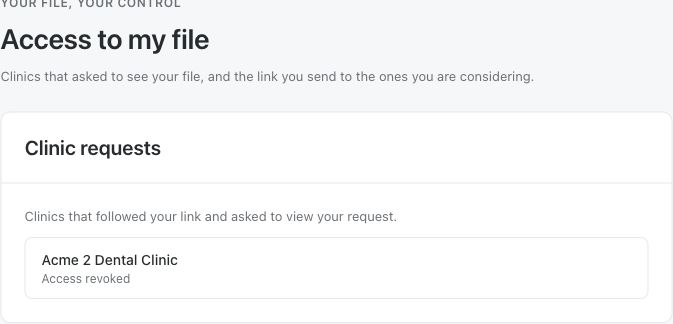
The patient sees the request under Access to my file and decides. Approving needs a tick in the box I agree to share the listed information with the clinic. If the patient declines, nothing is shared. Until the patient approves, the clinic's page shows Hidden until the patient approves.
- In the patient account, open Access to my file and open the clinic's request.
- Check which clinic is asking and what it will see.
- Tick the agreement box and choose Approve, or choose Decline.
Connect the clinic record
Approval lets the clinic read what the patient shared; it does not create or merge a clinic record on its own. On the request page the clinic chooses the record action. When the account is already linked to a record, Open patient record opens it. When the clinic holds records with matching details, they are listed as Records that may already be this person: choose Link this record only if it is the same person, or None of these, create a new record. When there is no match, choose Create patient record.
- Compare the shared details with your clinic's existing patient records.
- Choose the record action the page offers: open the linked record, link a matching record, or create a new one.
- Before you link or re-link a record, check the person carefully: linking replaces the record's name, email, phone and date of birth with the patient's account details.
- Open the resulting patient record and confirm it is the right person.
Questions & answers
Does using the same email address automatically connect records?
No. The clinic has to request access, the patient has to approve it, and then the clinic chooses a record action. A record with matching details is only listed as a possible match.
Can the patient remove the clinic's access later?
Yes. In Access to my file the patient can choose Withdraw access for a clinic. The clinic keeps its own clinic records according to its policies.
Continue the account-linking step for your role
Patient: sign in to your patient account
Clinic staff: open your clinic workspace
Sign in through your clinic’s workspace address, then open the access request described in this guide. Ask your clinic administrator for the workspace address or permission if needed.
Was this helpful?
Your feedback is saved on this device only.