What you’ll be able to do
The intended file is stored in the correct clinic record and can be opened by an authorized viewer.
Before you start
- Permission to upload patient files and to see that kind of file (x-rays, photos or documents)
- The correct patient and file type
- A supported file no larger than 20 MB
Choose the right record and category
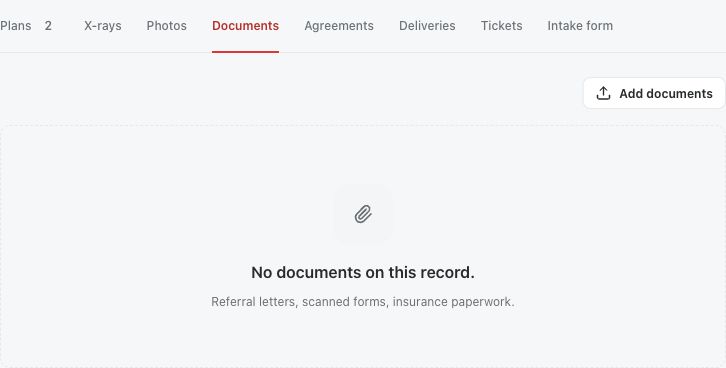
Open the patient record and confirm the person before choosing a file. Choose the X-rays, Photos or Documents tab. Files you add belong to the clinic's record. When the record is linked to the patient's Medquote account, files the patient shared from that account appear separately, on the From the patient tab.
The Documents tab accepts PDFs and images; X-rays and Photos accept images. The server checks the file type and size again, so a file the picker accepts can still be refused.
Upload, then verify the result
The uploader sends the selected files as soon as you choose them. Wait for the confirmation and the refreshed list. If an error appears, read the reason, fix the problem and try again.
- Choose Add x-rays, Add photos or Add documents on the right tab.
- Select the file or files.
- Wait for the upload response.
- Find the new entry and open its preview or document view.
- Check that the displayed content and category are correct.
Understand limits and access
You can upload up to ten files at once, each up to 20 MB. Accepted types are PDF, JPEG, PNG, WebP, HEIC, HEIF and BMP, although a tab's picker may offer fewer. Uploads count towards your clinic's storage.
Files the patient shared from their account stay under the patient's control. If the patient withdraws a file or your clinic's access, it stops opening for the clinic. Files your clinic uploaded itself are not affected.
Remove only the intended upload
Deleting a file needs the permission to delete patient files, which admins and doctors have by default. Before deleting, confirm the file's name, content and patient, and follow your clinic's retention rules. A file the patient uploaded from their own account cannot be deleted by the clinic. After deleting, check that the file is gone from the list.
Questions & answers
Can I upload a PDF in Photos?
Use the Documents tab for PDFs. The Photos tab accepts images only.
Why does a shared account file stop opening?
The patient controls files they shared from their account. If they withdraw the file or your clinic's access, it no longer opens, even if the page showed it earlier.
Does deleting a clinic upload delete my original local file?
No. Medquote removes its stored copy. The original file on your computer is separate.
Open your clinic’s patient files
Sign in through your clinic’s workspace address, then open the patient record and its X-rays, Photos or Documents tab. Ask your clinic administrator for the workspace address or permission if needed.
Was this helpful?
Your feedback is saved on this device only.