What you’ll be able to do
A reusable template is saved and applied with its preview and skipped rows reviewed.
Before you start
- An editable source plan containing the intended treatment steps
- An editable target plan
- Access to your own saved templates
Save the source plan
In the source plan's Treatments toolbar, choose Save template, enter a name and save it. The template keeps the ordered treatment steps and markers. It also keeps the chart as an as-saved reference for the preview, but not the source patient's free-text diagnosis notes. A template belongs to the person who saved it; colleagues do not see it in their list.
- Finish and check the source plan's step sequence.
- Choose Save template and give it a recognizable name.
Preview against the target plan
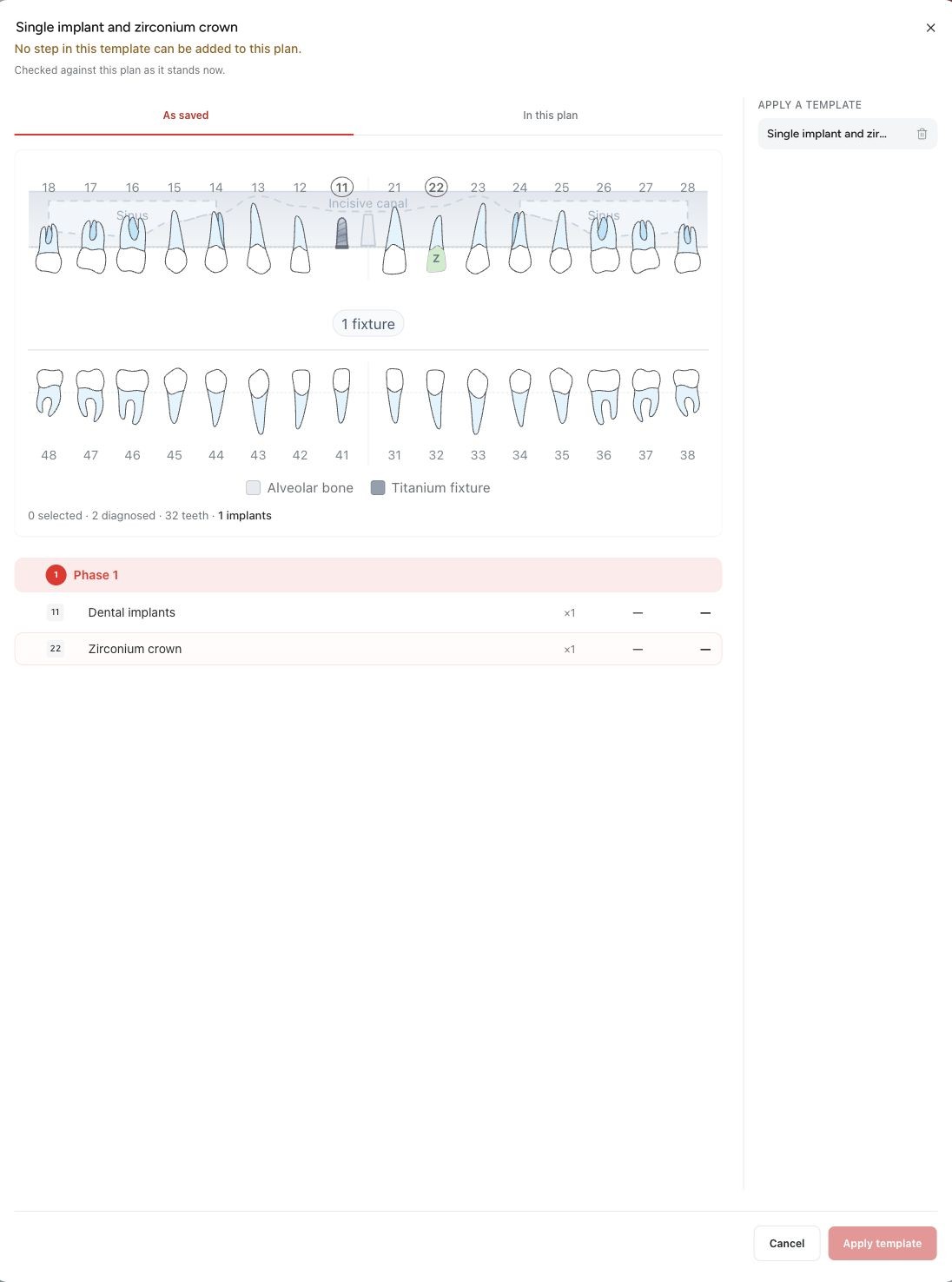
Open the target plan and choose Templates from its Treatments toolbar. Select one of your saved templates in the preview. The dialog shows the original chart separately from what the template would add to this plan, including any steps that would be skipped and why.
The preview does not write anything. It is advisory: another edit can change the plan or occupy the jaw before you apply, so the final result may differ. The source patient's diagnoses are not copied onto the target patient's chart.
- Choose Templates and select the template to inspect.
- Compare the as-saved chart with the target patient's chart.
- Review the projected rows, skipped rows, quantities and amounts.
Apply and verify
Apply template is available when the preview has at least one step to add. Medquote writes the steps that still fit this plan and skips the others with a reason; it does not promise to copy every row. Full-arch protocol steps are handled together, and the jaw is checked again when the steps are written.
Treatment-linked prices are recalculated in the target plan's currency. A row with no treatment link, such as a typed discount line, keeps its stored amount and takes the target plan's currency, so check those amounts carefully. Check the final plan before approval or patient sharing.
- Apply the selected template.
- Read any warning about skipped steps.
- Check the final chart, step list, quantities and prices; adjust the plan where needed.
Questions & answers
Does a template copy the source patient's diagnosis?
No. The saved chart is shown as a reference in preview, but application writes treatment steps, not diagnosis findings on the target patient.
Why were some steps skipped?
The target plan may have a conflicting tooth state, an existing full-arch system, or another condition that makes a saved row inapplicable. Read the preview and any apply warning for the specific reason.
Are template prices fixed?
No. Treatment-linked rows are resolved against the target plan's currency and current catalogue. Review hand-priced or unlinked rows particularly carefully.
Open a plan in your clinic workspace
Sign in through your clinic’s workspace address, then open the patient record and the intended plan. Ask your clinic administrator for the workspace address or permission if needed.
Was this helpful?
Your feedback is saved on this device only.