What you’ll be able to do
The corrected plan is approved again and the patient sees the newly shared version.
Before you start
- An approved plan needs a correction, and you can edit plans.
- A doctor is available to review the corrected plan.
- You know how the patient received the earlier version: in their account or by emailed link.
Make and verify the correction
An edit that changes the treatment or the pricing of an approved plan drops its approval. The plan goes back to Draft, the header shows Approval dropped, see Approval & sharing, and Approval & sharing explains why, for example The approval no longer stands, the treatment changed after it was signed. The doctors who signed are notified. Changes to the plan title, notes or cover page do not affect the approval. If you undo the change so the plan says exactly what was signed, the approval comes back.
The patient keeps seeing the version you shared until you share the corrected one. If the patient opens the old version after the approval drops, they see This plan can no longer be answered, with a note that the clinic will send an updated version.
- Open the plan, choose Edit plan and make the correction.
- Review the whole plan, including treatments, prices and the total, for unintended changes.
- Check the status. If the approval dropped, treat the plan as a new version that needs review.
Get the corrected plan approved
The corrected plan needs a doctor's signature on its current content. A signature given for the earlier version does not carry over: sending the plan for review again clears the earlier approvals.
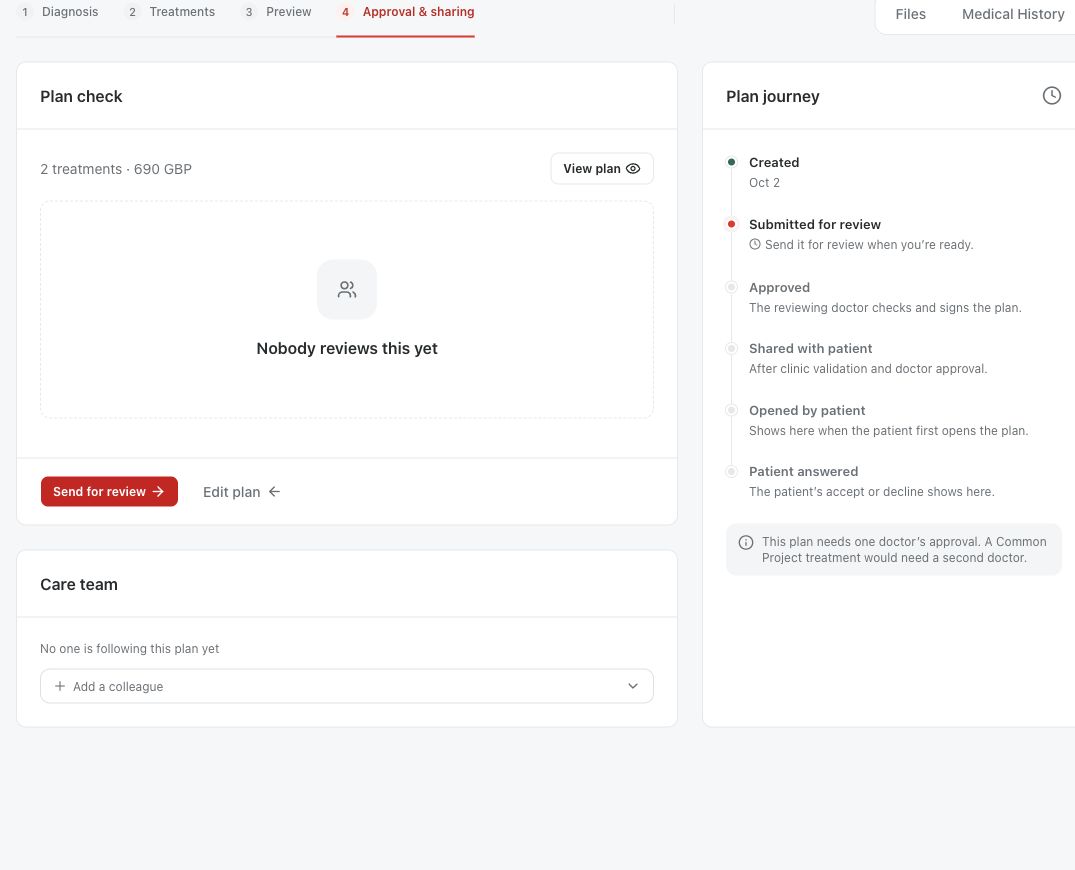
- Choose Send for review and pick the reviewing doctor, or two doctors for a Common Project.
- The doctor reads the plan, including the Changed since the last signature list, and either chooses Request changes or Sign and approve.
- Check that the plan shows Approved again.
Share the corrected version
Send to patient, if your clinic uses it, only marks the plan as sent. Share with patient is what replaces the patient's copy. Sharing again updates the same plan in the patient's account and marks it unread, so the patient can answer the new version. A patient who received a link by email gets a new link, and the old one stops working.
- Choose Send to patient if your clinic records sending.
- Choose Share with patient and read the confirmation.
- Check that the patient-facing copy shows the corrected treatment and total before asking the patient to look again.

Questions & answers
Why does the patient still see the old total after my edit?
Editing the plan does not change the copy the patient already has. Get the corrected plan approved again, then choose Share with patient.
Does every edit need a new signature?
No. Only changes to the treatment or the pricing drop the approval. Editing the plan title, notes or cover page does not. A diagnosis update after approval shows a notice instead: the approved treatment and prices are unchanged.
Open a plan in your clinic workspace
Sign in through your clinic’s workspace address, then open the patient record and the intended plan. Ask your clinic administrator for the workspace address or permission if needed.
Was this helpful?
Your feedback is saved on this device only.