What you’ll be able to do
A reviewed plan reaches the right patient, with a clear owner at each handoff.
Before you start
- Access to the correct clinic patient record
- Permission to edit the patient record, and plans left in your clinic's monthly allowance
- Permission to edit plans for diagnosis and treatment changes, and a doctor who can review the plan
Start from the patient record
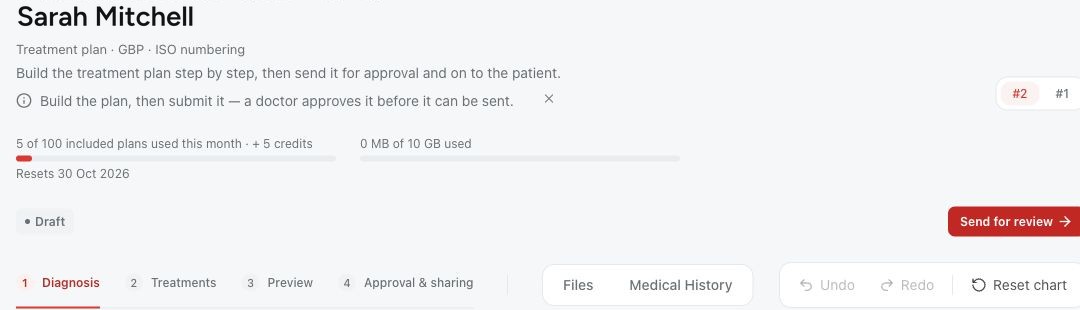
Open the patient's clinic record and check that it is the right person. Choose New plan in the record header, or in the Plans tab. Medquote creates a draft and opens the plan. A new plan is titled Treatment plan, uses ISO numbering and is priced in the clinic's base currency.
Creating a plan needs permission to edit the patient record, and each new plan counts against your clinic's monthly plan allowance. Adding findings and treatments then needs permission to edit plans. If an action is not available to you, ask a colleague who has the permission.
The patient does not need a Medquote account for you to start a plan. If you will share the plan to their account, link the account to this record before you share. A matching email address alone does not link them.
- Open the correct patient record.
- Choose New plan.
- Confirm that the draft editor opens for that patient.
- Check the plan title, numbering and currency before adding the proposal.
Build a plan the doctor can review
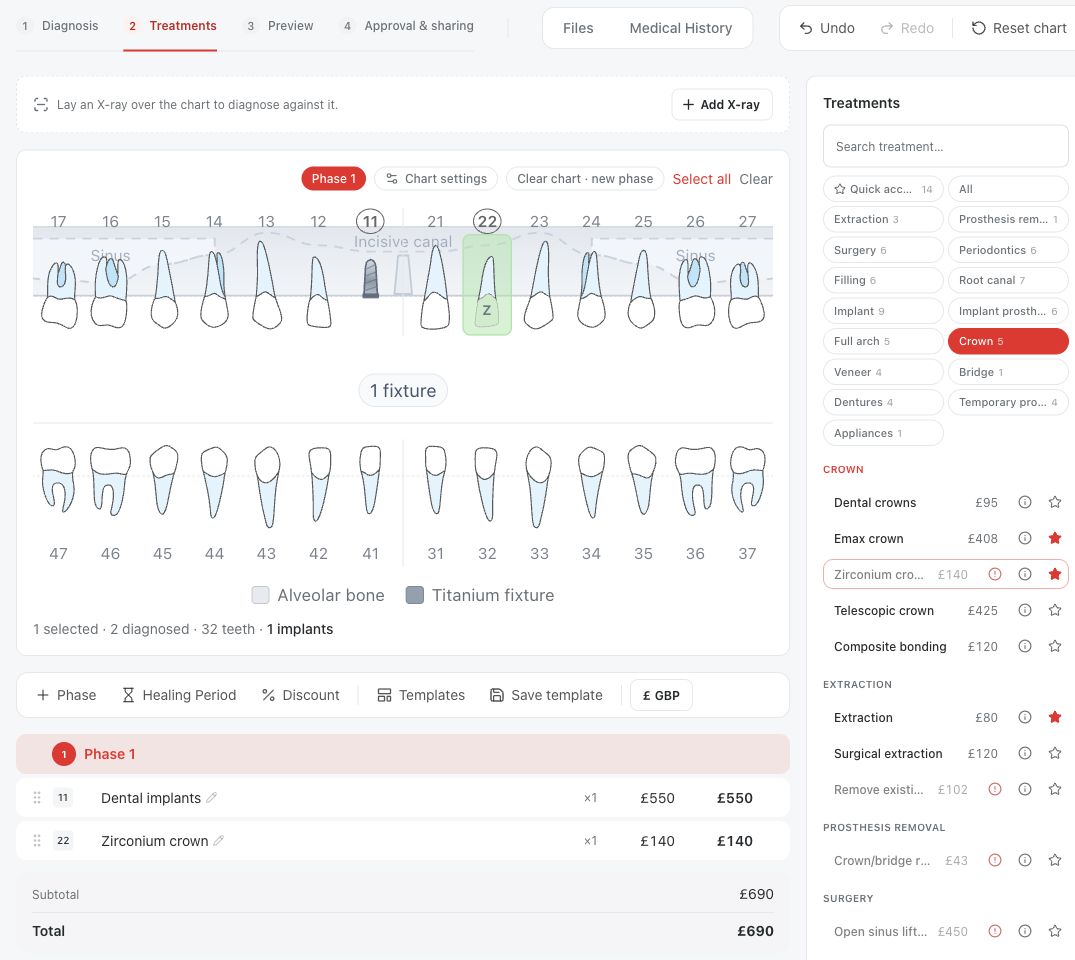
Record existing findings in Diagnosis. Add proposed treatments in Treatments. These describe different points in time: a missing tooth is a current finding, while its replacement is a planned step. If a treatment is not allowed on a tooth, read the reason rather than changing the diagnosis to unlock it.
Before sending the plan for review, check the selected teeth, phases, quantities, variants and prices. If you use a template or a full-arch package, check the rows it actually adds; the package name or template preview does not prove every component was added.
Use a worked example when you need one
The general workflow is the same whether the clinician proposes a single treatment or a full-arch package: record the current findings, add the assessed proposal, check what was added and review the quote. A package is an example of using the editor, not the default starting point for every patient.
For a small example, see the guide on one implant and one zirconium crown. It keeps the implant and the crown on separate teeth and explains what a crown on an implant needs first. For full-arch examples, the catalogue includes All-on-4, All-on-5, All-on-6, All-on-7 and All-on-8, and the example guide explains how to add a package and check its rows.
Complete the clinical handoff
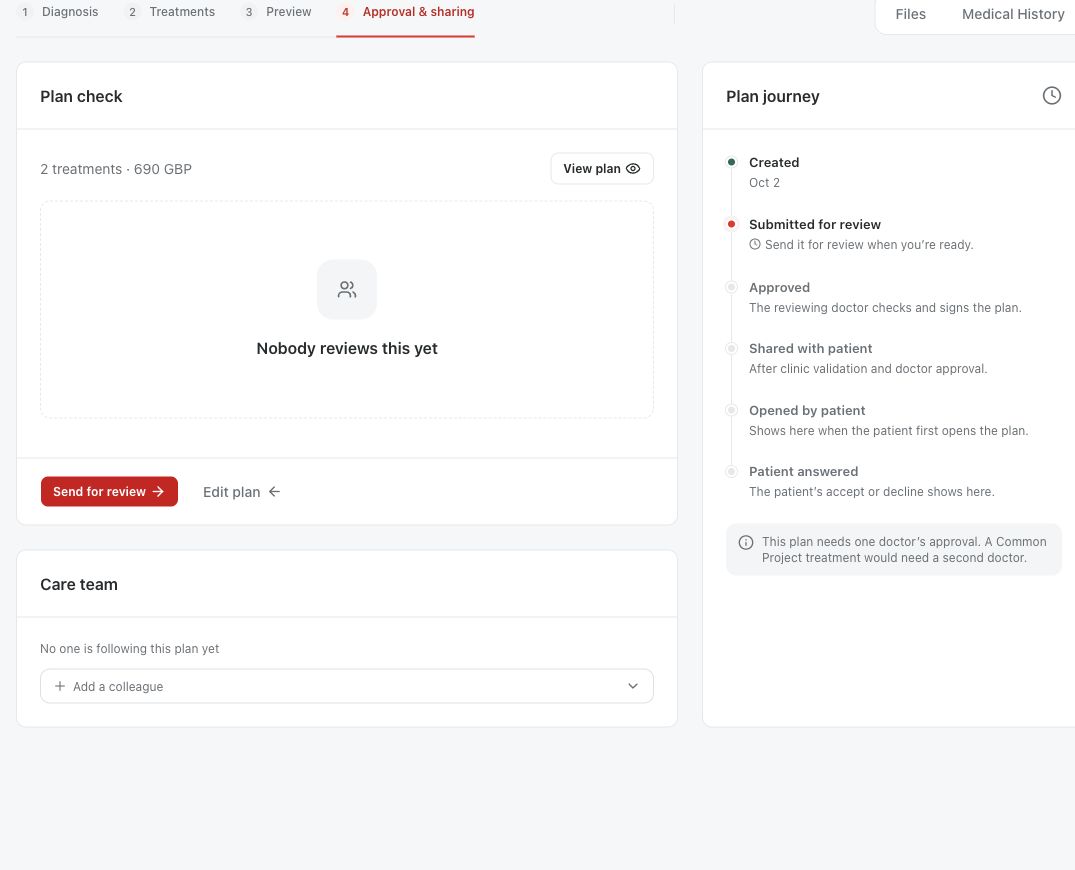
When the plan is ready, choose Send for review on Approval & sharing and pick the reviewing doctor. The doctor either requests changes or signs and approves. A request for changes is a normal result when the proposal needs work.
If the treatment or pricing changes after approval, the approval drops and the plan returns to Draft. Send it for review again instead of relying on the earlier signature.
Share the plan, then leave room for questions
Send to patient and Share with patient are different actions. Send to patient only changes the status. Share with patient delivers the plan and tells you where it went: into the patient's account, or as an emailed link if the patient has no account. Read that confirmation instead of assuming the patient has the plan.
The patient should be able to read the current version and ask a question. A good first result is a clear, approved plan the patient can reach, not a rushed acceptance.
- Get the plan approved by a doctor.
- Choose Share with patient.
- Read the confirmation and check the version the patient will see.
- Tell the patient where to find the plan and how to ask a question.
Questions & answers
Why can the clinic see a plan that the patient cannot?
A saved, approved or Sent to patient plan has not necessarily been delivered. Check that the patient's account is linked to the record, then use Share with patient.
Do all roles complete all steps?
No. Roles and permissions decide which actions each person sees. Only a doctor signs and approves; admins, doctors and Planning Specialists can create plans, send them for review and share them by default.
Does the patient have to accept the plan?
No. Reading the plan and asking an informed question are useful outcomes. The patient decides in their own time.
Open a plan in your clinic workspace
Sign in through your clinic’s workspace address, then open the patient record and the intended plan. Ask your clinic administrator for the workspace address or permission if needed.
Was this helpful?
Your feedback is saved on this device only.